Aonpos all in one pos
  • Mastering Kiosk Performance: Why Your Self-Service Screen is Lagging?
    Mastering Kiosk Performance: Why Your Self-Service Screen is Lagging? Dec 10, 2025
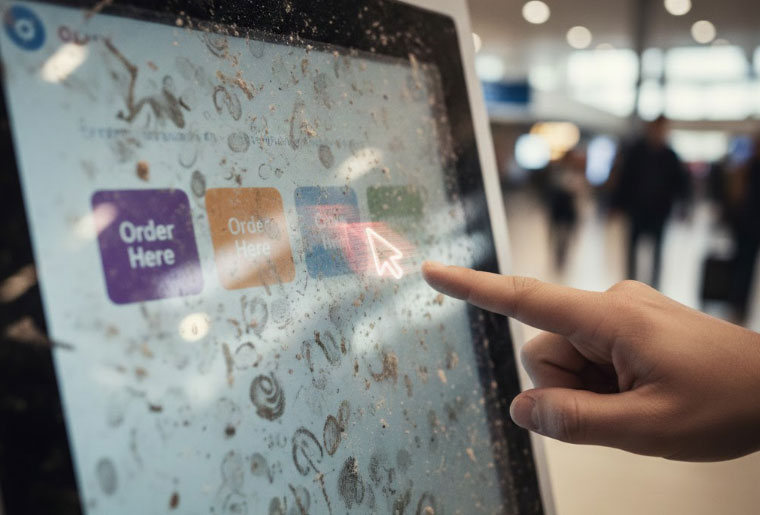
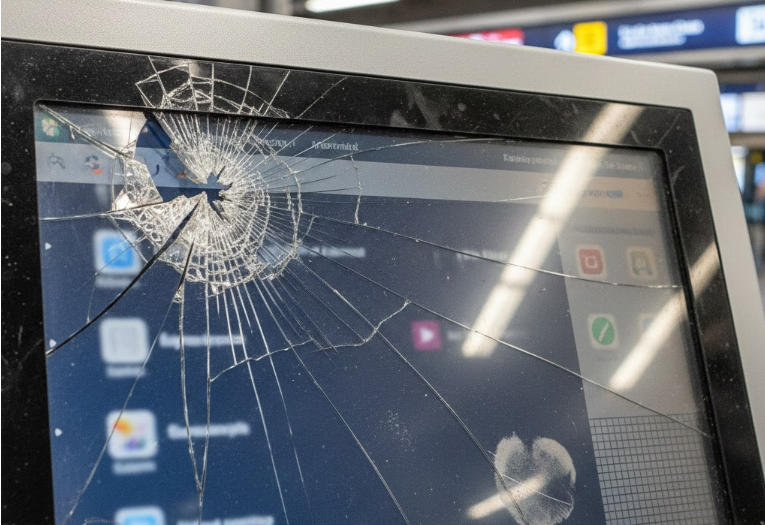
    Introduction: The Cost of Sluggish Service In the world of self-service, a smooth, instantaneous touch screen experience isn't a luxury—it's a critical operational necessity. Whether you manage public information kiosks, industrial HMIs (Human-Machine Interfaces), or automated retail terminals, a slow or unresponsive display directly translates to frustrated users, increased transaction abandonment, and higher maintenance costs. If you’re struggling with persistent screen lag, inaccurate touch points, or the dreaded intermittent unresponsiveness on your self-service machines, this guide provides a deep-dive into the nine primary culprits and offers actionable troubleshooting steps to restore peak performance. Part 1: The Physical & Environmental Culprits (External Check) Before diving into complex hardware or software diagnostics, start with the easiest and most overlooked causes of touch screen failure: the physical environment and the screen itself. 1. Screen Grime and Touch Sensor Interference The Problem: Accumulated dust, fingerprints, and sticky residues act as an unintended barrier on the display surface. This interference is particularly problematic for modern Capacitive Touch Screens (PCAP), which rely on registering the minute electrical change caused by human touch. Debris can disrupt this electrical field, resulting in missed taps or a perceived slow response because the touch controller has to work harder to register the input. The Fix: Implement a strict screen cleaning protocol. Power off the unit and use a gentle, ammonia-free screen cleaner and a soft microfiber cloth. Crucially, pay attention to the screen’s bezel and edges, where dirt and liquid often collect and can obstruct the touch array. 2. Thermal Throttling: The Effect of Extreme Temperatures The Problem: Self-service machines often operate in non-climate-controlled environments. Extreme heat (e.g., direct sunlight, poor enclosure ventilation) causes the internal components—the CPU, GPU, and touch controller—to overheat. The system then intentionally slows itself down (known as thermal throttling) to prevent permanent damage, leading to massive performance drops and severe input lag. Similarly, extreme cold can slow the liquid crystals in the LCD panel, causing visual lag. The Fix: Ensure the enclosure has ample and unobstructed ventilation ports. If the machine is outdoors, consider specialized protective enclosures with active cooling fans or, if budget permits, integrated air conditioning units to maintain an optimal internal operating temperature (usually below $40^\circ \text{C}$). 3. Physical Panel Damage and Dead Zones The Problem: Deep scratches, cracks, or impact damage directly compromises the integrity of the touch panel. For older Resistive Screens, this prevents the internal layers from making contact. On Capacitive Screens, it can break the conductive circuit. This often manifests as specific, non-functional areas—dead zones—or erratic, random inputs. The Fix: If damage is identified, the solution is typically a touch panel replacement. If the machine is subjected to heavy use or vandalism, consider upgrading to a screen with enhanced durability, such as one featuring IK-rated protective glass. Part 2: Hardware & Connectivity Diagnostics If the surface is clean and the temperature is stable, the next area to investigate is the internal connectivity and calibration. 4. Inaccurate Input Mapping and Calibration Loss The Problem: When a touch is registered in the wrong location (i.e., tapping 'A' registers as 'B'), the screen has lost its calibration. The system is failing to accurately map the physical coordinate of your finger to the corresponding digital coordinate on the display. This is a common issue that makes the system feel incredibly slow and frustrating. The Fix: The unit needs a touch screen recalibration. Access the device's operating system settings or the touch controller's proprietary utility software to run the calibration sequence. This often involves tapping a series of targets on the screen to reset the accurate touch matrix. 5. Loose or Faulty Internal Cabling The Problem: Self-service machines are subject to constant handling and vibration. This movement can cause the vital internal cables—connecting the touch controller board to the main PC via USB, serial, or HDMI/DisplayPort—to loosen or the contact pins to become corroded. A loose cable results in intermittent failure, flickering, or highly erratic and unpredictable phantom touches. The Fix: Perform a physical audit. Power down the machine and carefully inspect and reseat all internal data and power cables, ensuring they are securely fastened to both the host computer and the touch controller. Part 3: The Software and System Performance Drain Finally, the most complex issues often reside in the operating system and the application itself. 6. Application-Driven System Resource Exhaustion The Problem: If the screen only lags when the main service application is running, the app itself is likely consuming too many resources. This could be due to a programming memory leak, inefficient code, or graphically intense animations that push the CPU or RAM to its limit. When the computer's resources are maxed out, it cannot process the touch input buffer in real-time, causing severe input lag. The Fix: Monitor the system using the Task Manager or system monitor utility to identify the resource-heavy process. If the application is the culprit, a simple system or application restart can temporarily clear the memory. For a long-term solution, the application itself may require optimization or patching. 7. Outdated or Incompatible Touch Screen Drivers The Problem: The touch screen driver acts as the crucial translator between the physical touch controller and the operating system. An outdated, corrupt, or incompatible driver (often after a major OS update like a new Windows build) can break this communication link, resulting in erratic behavior or total non-responsiveness. The Fix: Regularly check the touch screen manufacturer's support portal for the latest driver and firmware updates. Always verify that the driver version explicitly supports your current operating system build. Keeping touch drivers updated is fundamental for device reliability. 8. Background Processes and OS Overload The Problem: If the machine runs on a standard general-purpose OS (like Windows or Linux), hidden background processes like automatic updates, antivirus scans, or unnecessary startup programs can drain system resources without the user’s knowledge. The Fix: Configure the operating system for a "kiosk mode" environment. Disable non-essential services, set OS updates to manual, and ensure that only the single, primary service application is running in the foreground. This dedicates all available CPU and RAM to the critical user interface function. 9. Electromagnetic Interference (EMI) The Problem: EMI is electronic "noise" generated by nearby external high-power sources (large transformers, motors, or radio transmitters). This noise can induce currents into the screen's cabling or the touch controller itself, leading to erratic, non-repeatable touch input and a perceived failure of the system. The Fix: Physically relocate the unit away from known sources of high EMI. Ensure the internal cabling is properly shielded and routed away from internal power supplies to minimize noise induction.
  • Can the Touchscreen Be Operated While Wearing Gloves?
    Can the Touchscreen Be Operated While Wearing Gloves? Dec 09, 2025
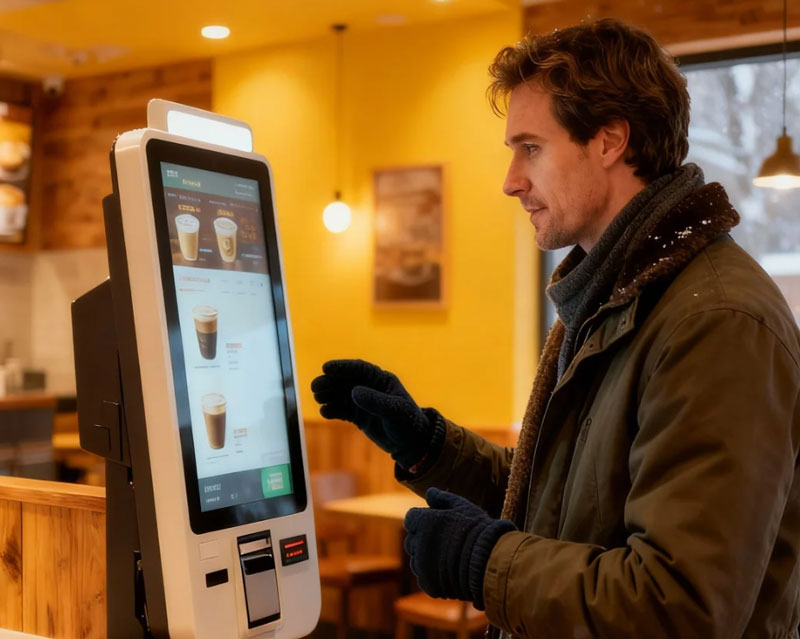
    Using your smartphone, tablet, or car's infotainment system in cold weather presents a frustrating challenge: the gloves come off, or the screen doesn't register the touch. This detailed guide explains why standard gloves fail, what technologies will work, and how you can stay connected without sacrificing warmth. 1. The Core Barrier: Understanding Capacitive Technology The reason your standard winter gloves are ineffective comes down to the fundamental physics of the device you are using. A. How Your Screen Registers Touch The vast majority of modern consumer touchscreens—including iPhones, Android phones, and most smartwatches—use capacitive touch technology. The Science: A capacitive screen is coated with a grid of transparent, electrically charged materials (often indium tin oxide). Your body naturally carries a static electrical charge. When your bare finger (a conductive object) touches the screen, it draws a small, localized amount of charge away from the grid. Registration: The device's processor detects this drop in charge and triangulates the exact point of contact, registering it as a tap or swipe input. Materials like wool, leather, cotton, and polyester are all electrical insulators. They effectively block your body's natural electrical field and static charge from reaching the screen's surface. Result: When you press an insulated glove onto the screen, the electrical field remains uninterrupted. The screen registers nothing, leading to frustration and input failure. 2. Three Proven Solutions for Gloved Touchscreen Operation If you need reliable performance without removing your gloves, you must introduce a conductive element between your skin and the screen. 2.1. Solution A: Specialized Conductive Gloves (The Reliability Choice) These are purpose-built gloves designed to mimic the conductivity of human skin. They are the most accurate and practical solution for everyday use. Material Integration Description and Performance Woven Fibers The most common type. Highly conductive materials (like silver-coated nylon, copper, or carbon) are woven into the yarn, primarily at the fingertip pads (thumb, index, middle). Coated Fingertips Gloves (often leather or thick winter materials) treated with a specialized liquid solution or conductive polymer patch on the tips. Full Glove Conductivity Less common, but some gloves feature a material mix that makes the entire hand conductive. This allows for swipes and taps using any part of the palm or finger. Pro Tip for Buyers: Look specifically for "capacitive" or "touchscreen-compatible" in the product description. Generic winter gloves will not work. 2.2. Solution B: Styluses and Pens A conductive stylus is a universal solution that bypasses the glove problem entirely. Mechanism: Modern styluses are designed with a soft, conductive tip (often rubber or mesh). The stylus acts as a highly conductive intermediary between your hand (gloved or bare) and the screen. Key Advantage: Since the stylus itself is conductive, you can wear any type of glove—even the thickest ski mittens—and still operate your device with precision. This is ideal for detailed work or digital art. 2.3. Solution C: DIY Hacks and Quick Fixes If you are caught in the cold and don't have specialized gear, you can try these quick fixes: Sew-In Conductive Thread: Purchase a spool of inexpensive conductive thread (often used in e-textiles). Sew a small, tight knot of this thread into the very tip of your existing glove fingers. This material will transfer the static charge from your skin through the fabric to the screen. The Nose/Knuckle Trick: While not ideal, the tip of your nose or your knuckle can be used to navigate a screen if the glove has to stay on, as these areas of the body are bare and conductive. 3. The Exception: Resistive Touchscreens While they are rare in consumer products, it is important to understand the alternative technology that allows any glove to work. What They Are: Resistive touchscreens work by pressure, not electrical conductivity. They consist of two electrically charged layers separated by tiny spacers. How They Work: When you apply pressure (e.g., with a gloved finger, a pen, or a stick), the top layer is forced down to meet the bottom layer. This contact registers the input. Where You Find Them: Resistive screens are still used in rugged industrial devices, older car navigation systems, factory equipment, and some point-of-sale (POS) systems where the user may frequently wear heavy work gloves. Screen Type Input Required Glove Compatibility Capacitive (Modern Phone/Tablet) Electrical Charge Only conductive gloves or styluses. Resistive (Industrial/Old GPS) Physical Pressure Any glove or object.
  • What Are the Common Causes of Touch Screen Malfunctions in Self-Service Kiosks and ATMs?
    What Are the Common Causes of Touch Screen Malfunctions in Self-Service Kiosks and ATMs? Dec 08, 2025
    When a self-service machine (ATM, ticketing kiosk, payment terminal) stops responding to touch, it causes immediate frustration for customers and downtime for operators. While the symptom is simple—the screen is unresponsive—the underlying causes can be complex, spanning physical damage, system errors, and environmental factors. Understanding the root cause is the first step toward fast and efficient maintenance. Here is a comprehensive guide to the most common causes of touch screen failure in commercial-grade self-service machines. Hardware-Related Failures (The Physical Breakdown) These causes relate to the physical components of the machine and often require inspection and replacement of parts. 1. Degraded or Damaged Touch Overlay/Panel The primary cause of non-responsiveness is the physical deterioration of the screen itself. Commercial touch screens rely on highly sensitive surfaces, and their failure modes differ based on their underlying technology: Capacitive Screens (PCAP): These use an electrical field. A deep scratch, crack, or prolonged liquid exposure can break the conductive layer, leading to dead zones where the electrical field cannot register a touch. Resistive Screens: These use two flexible layers pressed together by your finger. Constant, heavy use can cause the layers to wear out or delaminate, requiring more force to register input or causing failure altogether. Infrared Screens: These use an array of light beams around the bezel. If the screen's frame is bent, cracked, or obscured by heavy grime or stickers, the beams are broken permanently, resulting in a constant "phantom touch" or complete failure. 2. Loose or Faulty Internal Cabling Touch screens rely on dedicated flat flex cables or standard data cables (e.g., USB, HDMI) to transmit input data from the touch controller board to the main computer. Vibration and Stress: Machines in high-traffic areas (e.g., next to heavy doors or industrial equipment) experience constant vibration. This can cause cables to slowly unseat or become loose from their connectors, leading to intermittent connections or erratic behavior often termed "ghost touches." Fix: Inspect and reseat all connection cables between the display, the controller, and the PC. 3. Controller Board Malfunction The touch controller is a small, dedicated circuit board that processes the raw touch input before sending it to the operating system. If this board suffers a thermal event (overheating), a power surge, or simply reaches the end of its operational life, it will fail to translate the physical touch into a digital signal. The main computer may register the physical monitor, but the touch input device will disappear from the list of connected peripherals. Software, Driver, and Calibration Issues (The Digital Barrier) Sometimes, the hardware is fine, but the machine's operating system (OS) is unable to communicate with it correctly. 1. Outdated or Corrupt Touch Drivers Every hardware component needs a software driver to interface with the OS (Windows, Linux, etc.). OS Update Incompatibility: A common scenario is a recent mandatory OS update that breaks compatibility with older, proprietary touch drivers. The OS no longer knows how to interpret the data stream from the touch controller, rendering the screen useless. Driver Corruption: System crashes, sudden power loss, or malware can corrupt the driver files, preventing the system from initializing the touch function upon startup. 2. Improper or Lost Calibration Calibration is the process of precisely mapping the physical screen coordinates to the digital coordinates reported by the OS. Why it Fails: This is particularly relevant for older resistive screens. Calibration can be lost due to a hardware reset or a corrupt configuration file. The Result: The screen either doesn't respond at all, or it responds to an entirely different part of the screen than where the user touched (e.g., you tap the "Yes" button, and the system registers a touch on the "No" button). 3. System Resource Exhaustion If the kiosk’s main application or OS is suffering from a massive memory leak or excessive CPU utilization, the system may become too sluggish to process user input in real-time. The user taps the screen, but the input is placed in a processing queue that is backed up. The user perceives the screen as "unresponsive" when in reality, the computer is just too slow to act on the command immediately. A system reboot often clears this issue temporarily. Environmental and Operational Stress (The External Factors) Public-facing machines are highly susceptible to factors in their immediate surroundings. 1. Excessive Debris, Grime, or Spilled Liquids This is the most easily preventable cause, yet it's incredibly common. Around the Bezel: Heavy dirt, dust, or sticky residues built up around the edges of the display can obstruct the infrared beams or interfere with the capacitive field, leading to inaccurate input or constant phantom touches. On the Screen: Unlike phones, self-service screens are often exposed to spills. Even after the screen dries, the sugary or acidic residue can create conductive paths that trigger unwanted or erratic touches. 2. Extreme Temperature Fluctuations Self-service machines placed outdoors or near HVAC vents can suffer extreme thermal stress. High Heat: Excessive internal heat causes electronic components, including the touch controller, to operate outside their specified range, leading to thermal throttling (slowdown) or outright failure. Extreme Cold: In very cold environments, certain display layers and the liquid crystal display (LCD) response time can slow down, leading to perceived lag or non-responsiveness. 3. Electromagnetic Interference (EMI) While rare, strong external electromagnetic fields can disrupt the delicate low-voltage signaling used by the touch system. Sources: Placing a kiosk too close to industrial motors, high-power speakers, or powerful broadcasting equipment can induce electronic noise into the cabling or the controller board, causing intermittent and random touch responses. Summary and Maintenance Tips To maximize uptime and ensure accurate touch functionality, implement a rigorous maintenance schedule: Scheduled Cleaning: Regularly clean the screen and, critically, the edges and bezels to remove grime and debris. Regular Driver Checks: Ensure the touch screen drivers and firmware are up-to-date and compatible with the latest OS version. Physical Inspection: Periodically check and secure all internal cabling to prevent loose connections caused by vibration.
  • What is the Fundamental Difference Between a Self-Service Machine and a POS System?
    What is the Fundamental Difference Between a Self-Service Machine and a POS System? Dec 08, 2025
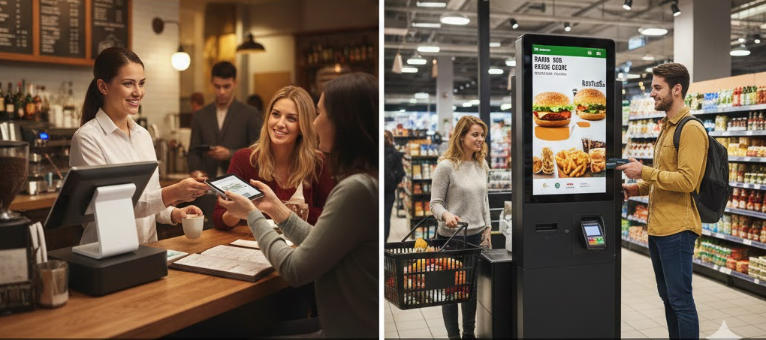
    The distinction between a Point of Sale (POS) machine and a Self-Service Machine (often called a kiosk) centers on who is operating the device and its primary operational role within the business. The POS System is the comprehensive, staff-operated central hub for sales, business management, and reporting. The Self-Service Machine is a customer-facing terminal designed specifically to streamline the ordering, scanning, and payment processes, reducing the need for direct staff involvement in every transaction. Defining the Core Components Achieving a high ranking requires defining the terms clearly for both Google and the reader. 1. What is a POS (Point of Sale) System? A POS system is a combination of hardware and software used by a business to finalize transactions. Crucially, it serves as the central nervous system for the entire operation. Primary User: Trained staff or cashier. Role: Comprehensive financial management, order entry, employee clock-in/out, inventory tracking, and running detailed sales reports (e.g., daily sales, best-selling items, labor costs). Location: Usually behind the counter, server station, or fixed service point. 2. What is a Self-Service Machine (Kiosk)? A self-service machine or kiosk is a dedicated, public-facing terminal designed for quick, independent customer interaction. Primary User: The customer. Role: Facilitating fast order placement, product scanning, and payment completion, shifting the burden of data entry from the employee to the consumer. Location: High-traffic customer areas like store entrances, dining halls, or waiting areas. A Side-by-Side Comparison of Features and Hardware To cement the comparison, here is a detailed breakdown of how the two technologies differ in practice. Feature Category POS Machine (Staff-Operated) Self-Service Kiosk (Customer-Operated) Operational Scope Comprehensive. Manages refunds, complex discounts, loyalty programs, staff permissions, and back-office reports. Transactional. Focuses purely on product selection, customization, and payment processing. System Interface Designed for staff efficiency, often featuring complex menus and detailed inputs for inventory management. Designed for User Experience (UX), featuring large buttons, clear visuals, and intuitive guided workflows. Hardware Smaller touchscreen monitor, cash drawer, dedicated receipt printer, magnetic card reader, optional handheld scanner. Large, durable, tamper-resistant touchscreen display, built-in payment terminal, dedicated stand/enclosure. Connectivity Deeply integrated with back-office software (inventory, labor, accounting). Primarily integrated with the Kitchen Display System (KDS) or order fulfillment queue. Cost Lower initial hardware cost, but tied to comprehensive software licenses. Higher initial hardware cost (due to size and durability) but potentially lower long-term labor costs. When to Use Which System: Ideal Applications Deciding which system to invest in depends entirely on your business model and operational goals. When to Prioritize the POS Machine The POS machine is indispensable when transactions require human judgment and intervention. Full-Service Restaurants: For managing complex table service, splitting checks, serving alcohol (age verification), and handling server tips. Specialized Retail (e.g., Jewelry, Electronics): When sales involve extensive product knowledge, upselling guided by staff, or handling high-value security requirements. Service-Based Businesses (e.g., Salons, Repair Shops): Used for booking appointments, managing client histories, and processing service-based invoices. When to Implement a Self-Service Kiosk Kiosks are a powerful tool for streamlining high-volume, repetitive processes. Quick-Service Restaurants (QSR) & Fast Casual: Reduces queues, allows customers to customize orders perfectly, and boosts average order value (AOV) through automated upsells. Retail Groceries & Pharmacies: Provides a quick checkout option for customers with a few items (self-checkout). Entertainment & Travel: Used for ticket purchasing, printing boarding passes, or checking into hotels. Business Impact: A well-placed kiosk can significantly reduce labor costs and increase order accuracy, while the POS machine remains vital for inventory control and detailed financial auditing. Which System is Right for Your Business? A successful modern business often requires both systems working in harmony. To determine your priority, consider the following: Do you require staff to manage inventory and labor? POS System is essential. Is your business high-volume and order accuracy critical? Self-Service Kiosk is a high-value investment. Do you want staff to focus on customer service instead of data entry? A combination is best. Use kiosks for ordering, and POS systems for exceptions (returns, large orders, staff overrides).
  • Top 5 self-service machine industry May 10, 2025
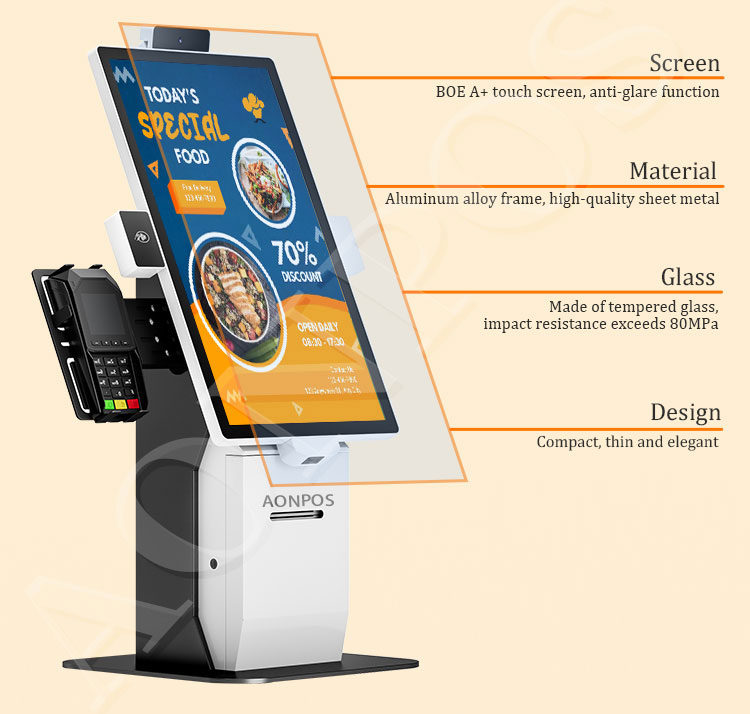
    Introduction A self-service kiosk is an interactive terminal equipped with a touchscreen and integrated peripherals, enabling users to perform transactions or access information without staff assistance. The global self-service kiosk market was valued at USD 34.36 billion in 2024 and is projected to grow at a CAGR of 10.9% from 2025 to 2030, driven by the demand for contactless solutions and operational efficiency. Key Benefits Faster Throughput: Reduces customer wait times by allowing parallel, autonomous transactions, especially in high-traffic environments like quick-service restaurants and retail stores. Improved Accuracy: Direct user input minimizes human error, with real-time previews helping customers confirm selections before purchase. Contactless Convenience: Supports EMV chip cards, NFC digital wallets, QR-code payments, and even mobile ordering to meet hygiene and speed expectations. Cost Savings: Automates routine tasks, reducing labor expenses and redeploying staff to higher-value activities such as customer engagement and problem resolution. Top 5 Self-Service Kiosk Manufacturers NCR Corporation: A pioneer in retail and hospitality kiosks, NCR’s SelfServ™ solutions offer modular form factors, ADA-compliant interfaces, and seamless back-office integration. Diebold Nixdorf: Known for its DN Series® EASY kiosks, Diebold Nixdorf delivers highly modular, reliable self-checkout and self-ordering systems with advanced cash-handling and biometric authentication options. Shenzhen Aonpos Technology Co., Ltd.: Founded in 2012, Aonpos is a professional ODM/OEM manufacturer focused on providing high-quality POS hardware and self-service terminal solutions. The company's core product line includes all-in-one touch POS systems, Android cash registers, self-service POS terminals, medical self-service terminals, station self-service terminals, hotel self-service terminals, touch screen monitors, barcode scanners, and printer peripherals, designed to simplify operations in the retail, hospitality, and service industries. Aonpos devices are powerful and highly modular in design, with customizable appearance and external devices. VeriFone Systems, Inc.: VeriFone’s unattended kiosks excel in secure payment processing, supporting major NFC/contactless schemes and flexible UX modules for diverse environments. Zebra Technologies Corporation: Leveraging its barcode and RFID expertise, Zebra’s interactive kiosks span wall-mount, countertop, and floor-standing formats, serving sectors from logistics to healthcare with rugged reliability. Self-service kiosks are indispensable tools for businesses aiming to enhance customer experience, streamline operations, and reduce costs. At Onpostech, our customizable kiosk platforms integrate leading hardware and software innovations—backed by full lifecycle support—to help you stay ahead in an increasingly automated world. Contact us to discover how our solutions can transform your service delivery. If you need further assistance with formatting or additional edits, feel free to ask!
  • The Importance of Modern Cash Register Systems in Business Operation May 08, 2023
    Introduction: When it comes to modern business operations, cash register systems play a crucial role. As essential tools for processing payments and transactions, cash registers not only streamline the transaction process but also provide businesses with added functionalities and advantages. In this article, we will delve into the key features of all in one pos systems and how they drive business success. Diversified Payment Options: With technological advancements, modern touch Screen Pos Terminal systems have adapted to various payment methods such as credit cards, debit cards, mobile payments, and digital wallets. This flexibility allows customers to choose their preferred payment method, offering a convenient and seamless consumer experience. Fast and Efficient Transaction Processing: One of the key advantages of modern desktop digital pos system is their ability to process transactions quickly and efficiently. With features like barcode scanning, Near Field Communication (NFC), and mobile payment technologies, cash registers enable swift transaction processing, reducing customer waiting time, and improving overall efficiency. Real-time Data Analysis and Reporting: Excellent billing machine systems not only handle transactions but also collect and analyze transaction data. Businesses can obtain real-time sales data, inventory levels, and customer preferences through these systems. Such data analysis and reporting are crucial for devising marketing strategies, optimizing inventory management, and increasing sales profitability. Inventory Management and Replenishment: Modern pos solutions systems are often integrated with inventory management systems, allowing businesses to track inventory levels in real-time and prompt timely replenishment. When the inventory falls below a predefined threshold, the system sends alerts to remind businesses to restock, ensuring timely availability of goods. Security and Data Protection: Security is a crucial factor when handling payments and sensitive information. Excellent cashier machine systems employ secure encryption technologies to ensure the secure transmission and storage of payment data. Additionally, these systems should have strict access control and user authentication features to prevent unauthorized access and data breaches. Scalability and Customization Options: Business needs vary, and therefore, electronic cash register systems should offer scalability and customization options to cater to specific industry and business requirements. These options include additional hardware components (such as printers, scanners, etc.), software integrations, and customizable interfaces. Technical Support and Maintenance: When using all in one pos systems, businesses require reliable technical support and maintenance services. Prompt technical support and maintenance provided by the vendors ensure smooth operation and timely issue resolution. This helps businesses enhance productivity, minimize potential downtime, and mitigate losses. Conclusion: pos systems play a vital role in modern business operations. By offering diversified payment options, fast and efficient transaction processing, real-time data analysis and reporting, inventory management and replenishment, security, and customization options, cash register systems provide comprehensive solutions for businesses to enhance efficiency, optimize inventory management, and elevate customer experiences. Whether it's a retail store, restaurant, or any other service industry, choosing the right modern cash register system is crucial. Businesses should consider factors such as system features, security, and technical support, and collaborate with reputable vendors to ensure they fully leverage the advantages of cash register systems for business success.
1 2 3

A total of3pages

Need Help? Chat with us

leave a message
For any request of information or technical support, fill in the form. All fields marked with an asterisk* are required.
Submit

Home

Products

whatsApp

contact